
Plugin Features
The Spark plugin brings first-class test support to your JetBrains IDE. Here's everything it does.
File support
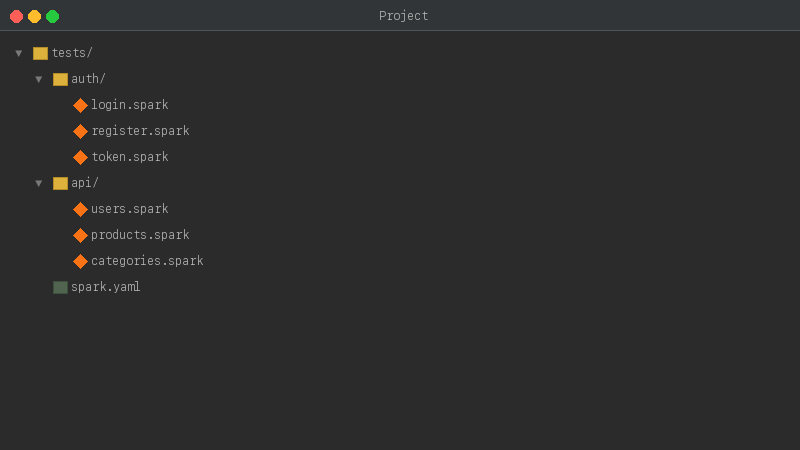
- Custom icon —
.sparkfiles show a Spark icon in the project tree - YAML highlighting —
.sparkfiles are treated as YAML for syntax highlighting and structure
Schema validation & autocompletion
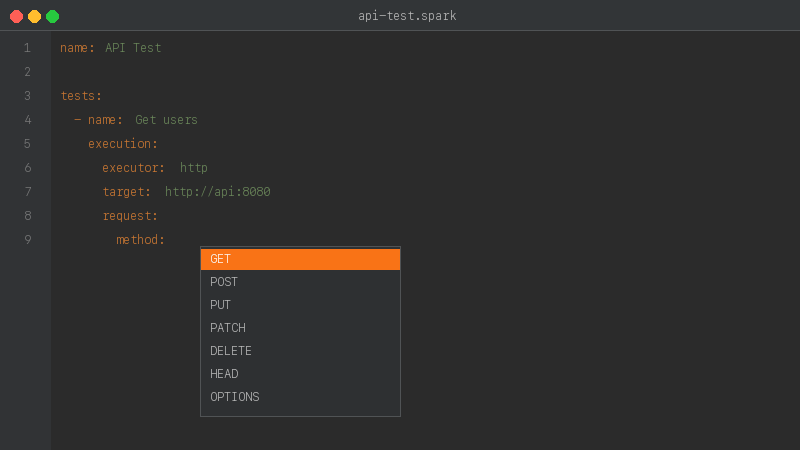
.spark files get full JSON Schema support — autocompletion, validation, and inline documentation as you type.
Structure view
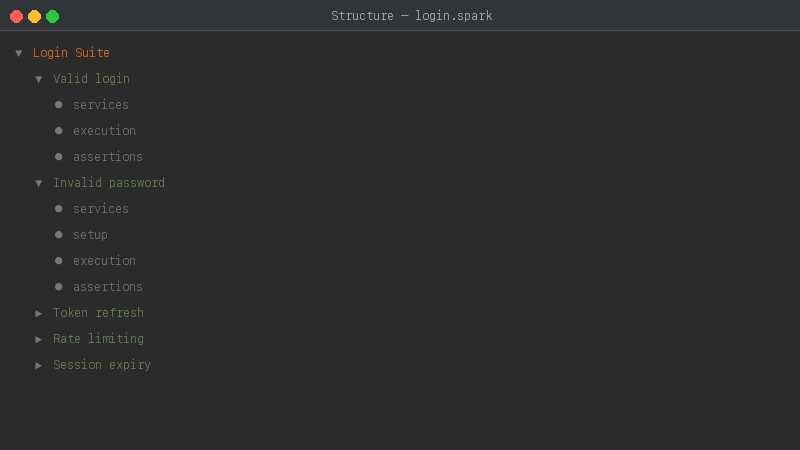
Open the Structure panel to see a hierarchical view of your .spark file — suite, tests, and their sections (services, setup, execution, assertions).
File creation
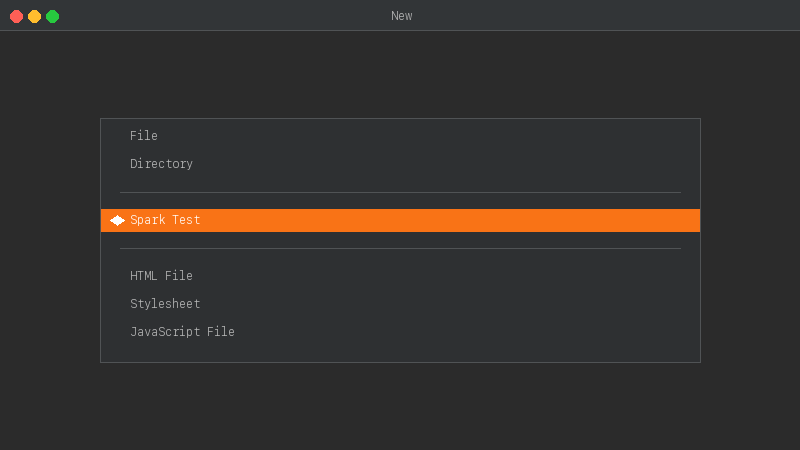
New > Spark Test creates a .spark file from a template with the basic structure pre-filled.
Context menu
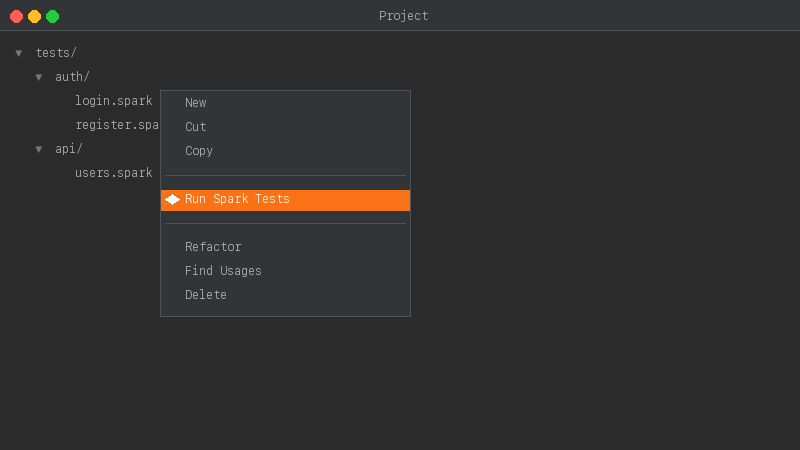
Right-click a folder or file in the project tree to see Run Spark Tests — runs all .spark files in the selected path.
Gutter play buttons
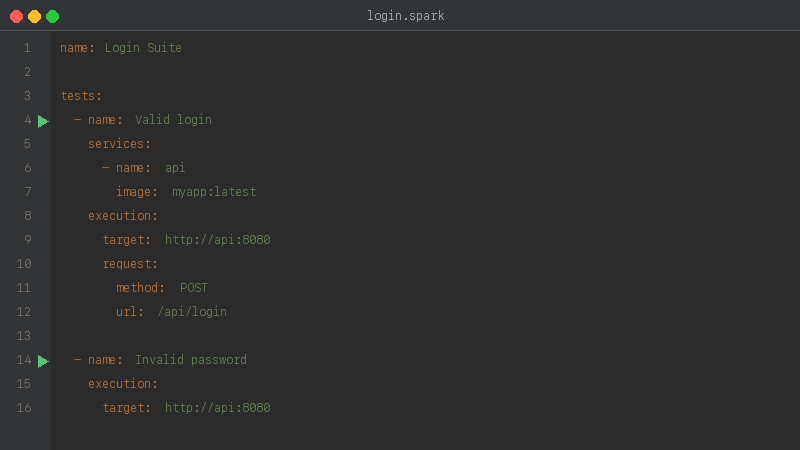
Play buttons appear next to name: keys in .spark files:
- Suite-level — runs all tests in the suite
- Test-level — runs a single test with
--filter
Click the button to create and execute a Spark run configuration. Results appear in the IDE's Test Runner.
Test Runner integration
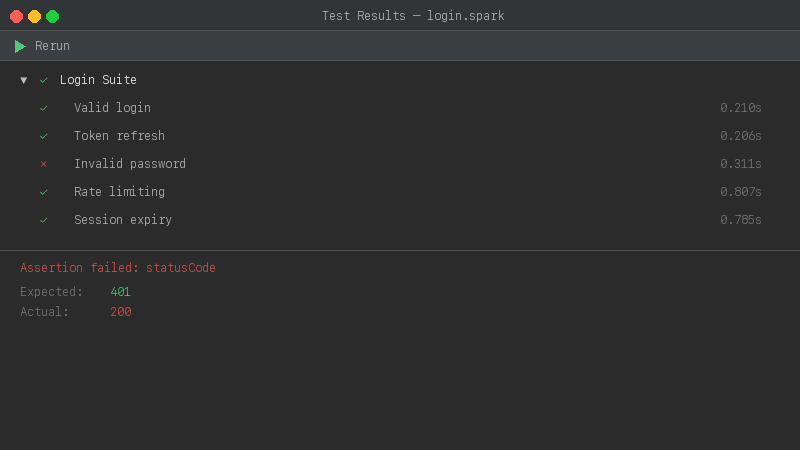
Test results are displayed in the IDE's built-in Test Runner tree:
- Pass/fail status for each test
- Execution duration
- Diff viewer for assertion failures (expected vs actual)
- Click a test in the tree to navigate to its definition in the
.sparkfile
--teamcity flag) for IDE integration. This flag is added automatically — you don't need to configure anything.